
Automatic Scripture Detection for Church Services
Software that hears the preacher say a verse and puts it on screen. What it does on a Sunday, what to expect from it, and how to set it up well.
· 4 min read · The RheoCast team
Every church media volunteer knows the moment. The preacher says "Look with me at John chapter fifteen" and keeps talking, and you are still typing the reference while the congregation waits for the screen. In a sermon with twenty verses, quoted quickly and sometimes from memory, keeping up by hand is hard work.
Automatic scripture detection takes that job off the volunteer. The software listens to the sermon, recognises a Bible reference as it is said, and puts the verse on the screen. This post explains what that looks like on a real Sunday, what to expect from it, and how to set it up so it works well.
What happens on a Sunday
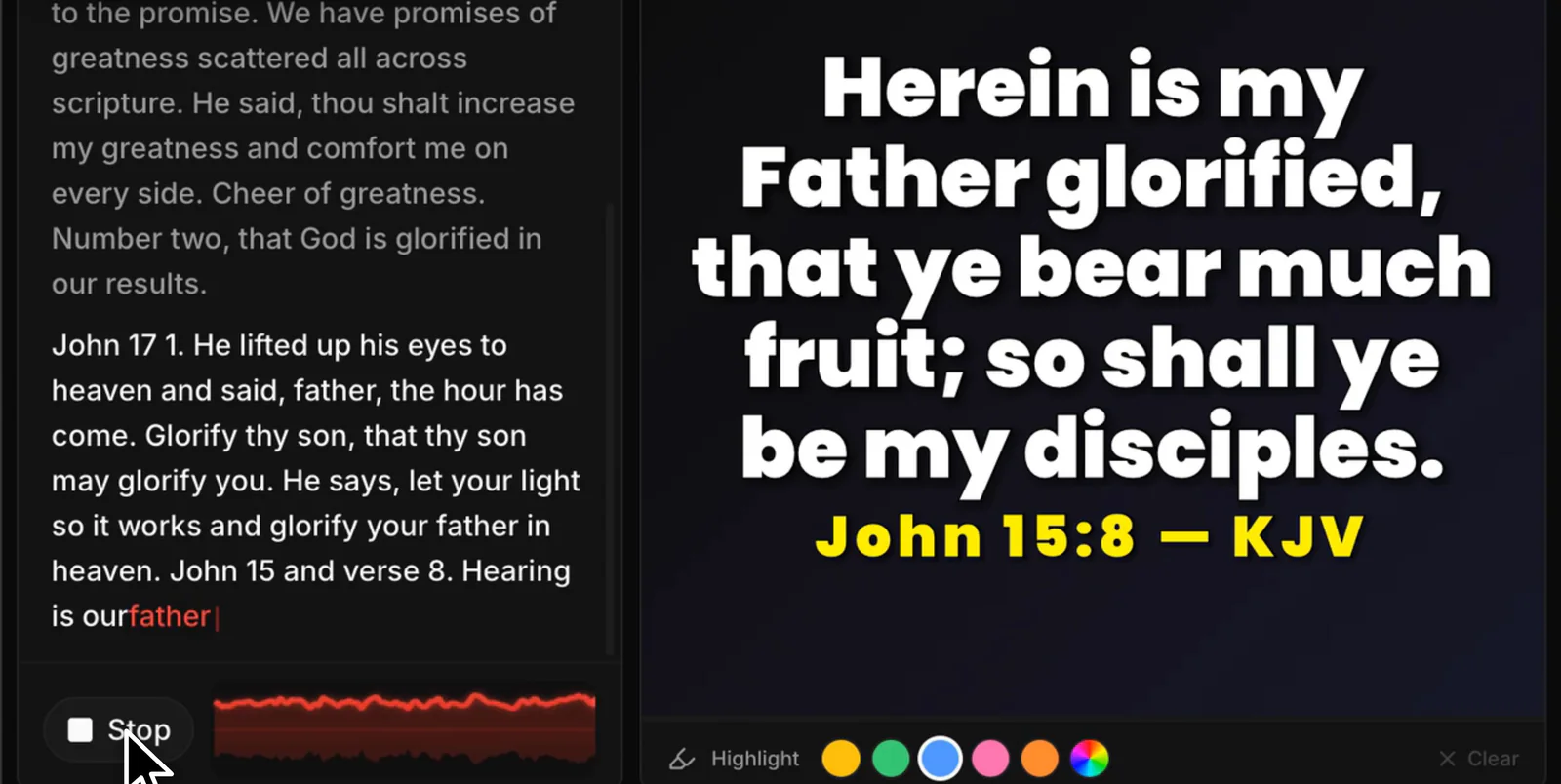
RheoCast listens to the preacher's microphone and writes the sermon out as it is preached, on the operator's screen. When the preacher says a reference, the verse appears, often before they have finished saying it.
People do not quote scripture the way it is printed, so detection has to understand how references are spoken:
| The preacher says | On the screen |
|---|---|
| "John chapter three verse sixteen" | John 3:16 |
| "Romans eight twenty-eight" | Romans 8:28 |
| "Second Corinthians four and seven" | 2 Corinthians 4:7 |
| "Acts chapter 9. Let's do 10." | Acts 9:10 |
| "The first three verses of Psalm 23" | Psalm 23:1-3 |
| "Verse 6", with no book | Verse 6 of the chapter on screen |
It also knows the difference between a reference and an ordinary sentence. "John 3, 16 people came" is not John 3:16, and "the next day" in a story does not move the screen.
Following the reading
Many preachers announce a passage and read through it. On the Pro and Ministry plans, RheoCast's Follow Reading puts the first verse up when the passage is announced, then each next verse as the reading reaches it, and stops at the end of the passage. A line under the preview shows where the reading is ("Following John 3:2-4 · 2 of 3"), so the operator can see the next verse coming.
The preacher can move the screen by voice too: "next verse", "go back", "go to verse 12", "next chapter". These only work as plain requests. "Abraham went back to the land" leaves the screen alone.
Verses quoted without a reference
Preachers often quote a verse without naming it: "For God so loved the world...". RheoCast's Related panel offers the verse when its words are heard, so the operator can put it up with one click. It suggests rather than shows, because a phrase that sounds like scripture is not always meant as a reading.
The operator stays in charge
Automatic does not mean out of control. Every verse RheoCast hears goes into a Detections list on the operator's screen, with Display and Schedule buttons.
- With Auto Display on, a reference RheoCast is sure of goes up by itself, and a less certain one waits for a click.
- With Auto Display off, nothing changes the screen by itself. Every verse waits for the operator.
Many churches start with Auto Display off for their first service or two, watch what it catches, and then turn it on.
Setting it up so it works well
Detection is only as good as what it hears. Most problems come from the sound, not the software.
- Use a feed from the sound desk. Take the preacher's microphone from the mixing desk, not a microphone in the room. A room microphone hears the echo, the congregation and the band.
- Send only the preacher. If you can, give the computer the pulpit microphone alone, not the whole mix with the music in it.
- Check the connection. Live transcription uses the internet. On RheoCast's Pro and Ministry plans, a capable computer can also transcribe offline, in English, so the service carries on when the internet drops.
- Run a five-minute test with the real microphone before your first service, and read the transcript to hear how the system hears your preacher.
- Keep search ready. If a reference is missed, typing it in the search bar puts it up in a second.
Beyond the screen
Because RheoCast writes the whole sermon out, every service is kept as a session. Creator Studio turns that into a cleaned-up transcript, a summary and sermon notes, and on higher plans a five-day devotional and social posts, from what was actually preached.
If your church is on a ChurchCast plan with its own app (Basic Plus and above), RheoCast publishes that devotional series straight to that app, one day at a time, with a notification to members at the time you choose. That is on RheoCast Pro and Ministry, or ChurchCast Professional Plus and Enterprise, and ChurchCast's Professional plans and above include RheoCast.
The detected verse also reaches the live stream. The verse on the church screen and the verse in the stream are the same verse, at the same moment, as a full-screen panel or along the bottom of the camera shot. See How to Stream Your Church Service to YouTube and Facebook.
Which plan includes it
RheoCast's free plan includes a 14-day trial with 45 minutes of transcription, so you can try it with your own preacher. Starter includes 12 hours of live transcription a month. Pro and Ministry include unlimited transcription with fair use of 30 and 60 hours a month, Follow Reading, and offline transcription on capable computers. See the pricing page for prices in your currency.
Other apps detect scripture too. For a fair comparison of what each one does, read RheoCast vs Pewbeam vs Loghema. Or download RheoCast and try it with your own preacher this Sunday.
Read next
- RheoCast vs Pewbeam vs Loghema: Scripture Apps ComparedThree apps that listen to the sermon and put the verse on screen. What each one does, what it costs, and what RheoCast adds on top.
- Bible Presentation Software: What to Look ForHow to choose Bible presentation software for your church: finding verses fast, translations, lyrics, the stream, offline use and the real cost.
- How to Stream Your Church Service to YouTube and FacebookA practical guide to streaming your church service: cameras, sound, internet, going live on YouTube and Facebook together, and a checklist.