
How to Stream Your Church Service to YouTube and Facebook
A practical guide to streaming your church service: cameras, sound, internet, going live on YouTube and Facebook together, and a checklist.
· 5 min read · The RheoCast team
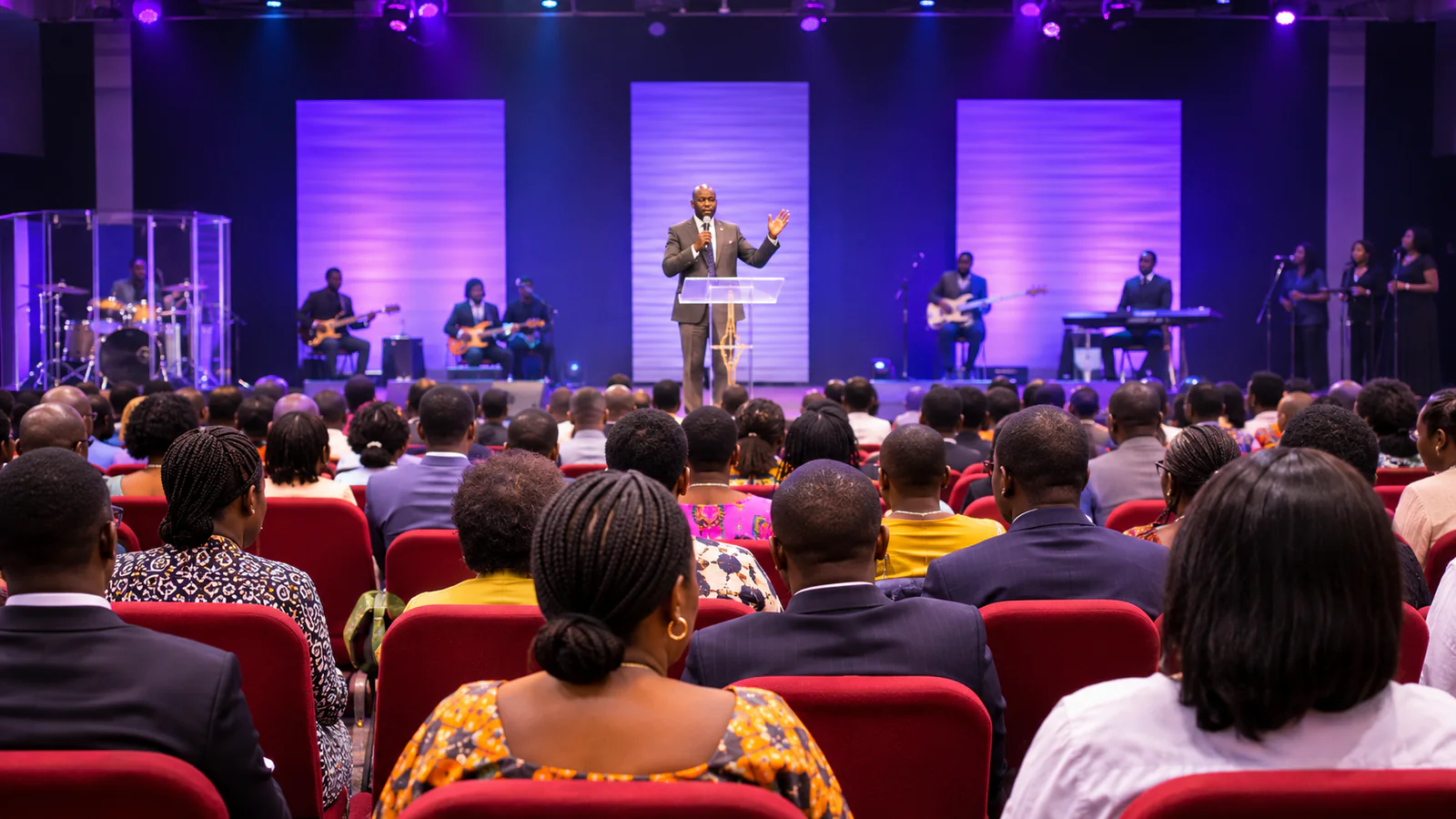
A live stream is now the front door of most churches. Visitors watch a service online before they ever walk in, and members who are travelling, unwell or caring for someone stay connected through it. The good news is that a stream people enjoy watching does not need a broadcast truck. It needs clear sound, a steady picture, an internet connection you have tested, and someone who knows the plan.
This guide walks through the whole setup, from the microphone to the moment you press Go Live, and ends with a checklist your team can use every Sunday.
1. Get the sound right first
Viewers forgive a soft picture. They switch off when they cannot hear the sermon. Sound is the single most important part of a church stream.
- Take a feed from the sound desk. A microphone on the camera or the computer picks up the room: the echo, the fans, the child two rows back. A cable from the mixing desk's auxiliary or record output gives you the pastor's microphone and the band, clean.
- Mix for the stream, not the room. The room already hears the drums loud. The stream does not, so the levels that sound right in the building often sound wrong online. If your desk has a spare mix, give the stream its own.
- Listen on headphones at the streaming computer during the service, not just on the meters.
2. Cameras: start with one, add a second
One steady wide shot from the back of the room is a perfectly good start. A second angle, closer on the preacher, makes the stream much easier to watch for an hour.
You do not have to buy a camera for it. A phone on a tripod makes an excellent second angle: see How to Use a Phone as a Church Camera. Whatever you use, keep cameras still, set them up before people arrive, and avoid pointing one straight at a bright window or stage light.
3. Check your internet upload
Streaming depends on your upload speed, not the download speed your provider advertises. Run a speed test on the streaming computer, at the time you actually stream: Sunday morning on a shared connection is not Tuesday afternoon.
A useful rule is that your upload should be about twice the video bitrate you stream at.
| Stream quality | Video bitrate | Upload you need |
|---|---|---|
| 1080p | about 4,500 kbps | about 9 Mbps |
| 720p | about 2,500 kbps | about 5 Mbps |
If your upload is limited, 720p that never stutters is better than 1080p that freezes. Plug the streaming computer into the network with a cable if you can, and keep it off the guest Wi-Fi.
4. Set up YouTube and Facebook
You need a stream key from each platform. Treat it like a password: anyone who has it can broadcast to your channel.
- YouTube: open YouTube Studio and choose Go Live. The first time, YouTube can take up to a day to switch live streaming on for a channel, so do this well before your first Sunday.
- Facebook: open Live Producer for your church's Page and copy the server URL and stream key.
You do not have to choose between them. In RheoCast, open Stream Settings in Broadcast and add both, plus any other service that gives you a custom RTMP address. Each destination has its own switch, and one press of Go Live streams to every destination that is switched on, at the same time.
5. Build your scenes before Sunday
A scene is a layout you can switch to with one click: which camera, and what sits on top of it. Plan a few for the parts of your service:
- Before the service: a countdown or a welcome slide, with music.
- Worship: the camera on the worship team, with the song lyrics along the bottom of the screen.
- Sermon: the camera on the preacher, with the Bible verse on screen when it is read.
- Announcements: slides or a video.
- After the service: a closing slide with how to give and how to get in touch.
Scripture and lyrics are where many church streams struggle, because the presentation software and the streaming software are two separate programs that someone has to keep in step. In RheoCast they are one app: the verse you put on the church screen, or the one RheoCast puts up when it hears the preacher read it, appears in the stream too, and so do the lyrics. See Automatic Scripture Detection for Church Services.
6. Test, then go live
Before the first real service, stream a test to a private or unlisted video and watch it on a phone, on mobile data, the way your viewers will. RheoCast's Test button puts a test card and a tone on air, so you can check that a destination receives picture and sound without putting an empty sanctuary on the internet.
When you press Go Live, RheoCast checks first that a destination is switched on, that a scene is ready, and that a microphone is attached, and tells you which one is missing instead of failing once you are on air. While you are live, it shows the bitrate and any dropped frames. Dropped frames that keep climbing almost always mean the upload cannot keep up: lower the bitrate and they settle.
Record as well. A recording on the computer is your backup if the internet drops, and the raw material for the sermon clip you post later in the week.
7. Music and copyright
Streaming worship songs is not covered by the licence that lets you project the words in the building. In many countries churches need a separate streaming licence (in the United States, for example, CCLI offers one). Without it, YouTube and Facebook may mute or remove a service. Check what applies where you are before your first stream with music.
The Sunday checklist
- Sound feed from the desk connected, and checked on headphones.
- Cameras on power, framed and steady.
- Speed test done; streaming computer on a cable.
- Destinations switched on, and the stream keys still current.
- Scenes ready, the first one on air.
- Recording started.
- Someone watching the stream on a phone, to catch problems the console cannot see.
Streaming for free
Everything in this guide, from cameras and scenes to lyrics, recording and streaming to YouTube and Facebook at once, is in RheoCast's Broadcast console, which is free on every plan with no watermark on your stream. Read Free Church Presentation and Streaming Software for what the free plan includes, or download RheoCast and build your scenes this week.
Read next
- How to Use a Phone as a Church CameraTurn an iPhone or Android phone into a camera for your church stream: over Wi-Fi, by USB cable, or through HDMI and a capture card.
- Free Church Presentation and Streaming SoftwareWhat a church can do for free: put verses and lyrics on screen, run cameras and scenes, and stream to YouTube and Facebook without a watermark.
- Showing Worship Lyrics on Screen and on the StreamHow to put worship song lyrics on the church screen and the live stream: preparing songs, slides people can read, and following the worship leader.