
How to Use a Phone as a Church Camera
Turn an iPhone or Android phone into a camera for your church stream: over Wi-Fi, by USB cable, or through HDMI and a capture card.
· 5 min read · The RheoCast team
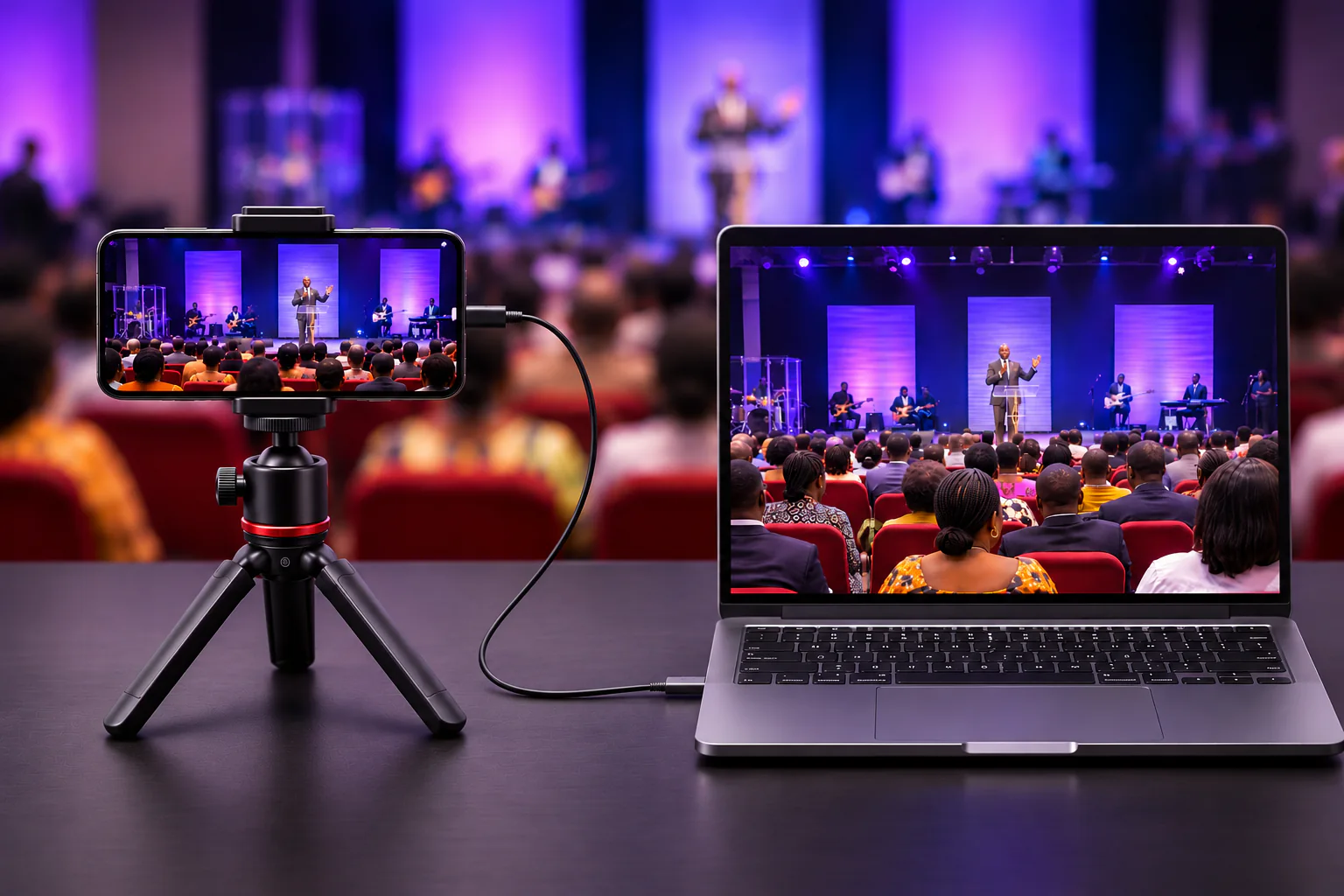
Most churches that stream start with one camera at the back of the room. It works, but a whole sermon from one wide angle is hard to watch at home. A second angle, on the preacher's face or on the worship team, makes the stream feel like being there.
You probably already own that second camera. A recent phone films sharper video than many entry-level camcorders, and an old one sitting in a drawer is still good enough for a close-up of the pulpit. This guide covers the three ways to connect a phone to your church's streaming computer, what each one is good for, and how to set it up so it lasts the whole service.
What you need
- A phone. With RheoCast Camera, that means Android 7.0 or later, or an iPhone or iPad on iOS 15 or later. Older phones are fine for a fixed shot.
- A way to hold it still. A small tripod with a phone clamp costs less than a meal out. A shaky phone is worse than no second camera at all.
- Power. Filming drains a battery fast. Plan for the phone to be plugged in for the whole service.
- The computer that runs your stream, with software that can take a phone as a camera. In RheoCast that is the Broadcast console, which is free on every plan, and the free RheoCast Camera app on the phone.
Film with the phone on its side. Landscape is the shape of the screen your viewers watch on, and a picture filmed upright ends up as a narrow strip with black bars either side.
Option 1: over Wi-Fi
Wi-Fi is the quickest way to start, and it lets you put the phone anywhere in the room without running a cable.
- Put the phone and the computer on the same network. Guest Wi-Fi often will not work, because many guest networks keep devices apart on purpose.
- In RheoCast, open Broadcast, choose Add Source, then Phone Camera. The computer shows a QR code.
- Open RheoCast Camera on the phone, tap Scan to connect and point it at the code.
That is the whole pairing. On later Sundays the phone reconnects by itself.
The picture never goes over the internet: it travels over your own network to the computer. That also means the network matters. A 5 GHz Wi-Fi network (routers often name it with 5G at the end) is much smoother than 2.4 GHz, which shares a crowded band with microwaves, Bluetooth and every router next door. If the picture softens when the building fills up and everyone's phone joins the Wi-Fi, that is the network, and a cable is the fix.
Option 2: over a USB cable
For a camera that stays in one place, a USB cable is the most dependable choice, like the setup in the picture at the top of this post. There is no network to get busy, and the same cable keeps the phone charged for the whole service.
- iPhone: open RheoCast Camera, plug the iPhone into the computer, and it appears in Add Source › Phone Camera under the cable. Click Add, then tap Allow on the phone. On Windows, install Apple's free Apple Devices app first, and, the first time you plug it in, Apple's iPhone driver from Windows Update.
- Android: turn on one developer setting on the phone once (the guide in the app walks you through it), plug in a cable that carries data, and the phone is listed in the same place.
A cable also lets an Android phone send a sharper picture than it would over Wi-Fi. If the cable gets knocked out mid-service, plug it back in and the picture comes back by itself.
The one limit is length. A USB cable longer than a few metres becomes unreliable, so this suits a phone on the stage edge or at the sound desk, not one at the back of a large hall.
Option 3: HDMI into a capture card
If you already use a capture card for a camcorder, a phone can go into it the same way. RheoCast Camera puts only the camera picture on the HDMI output: no buttons and no overlays, just the shot.
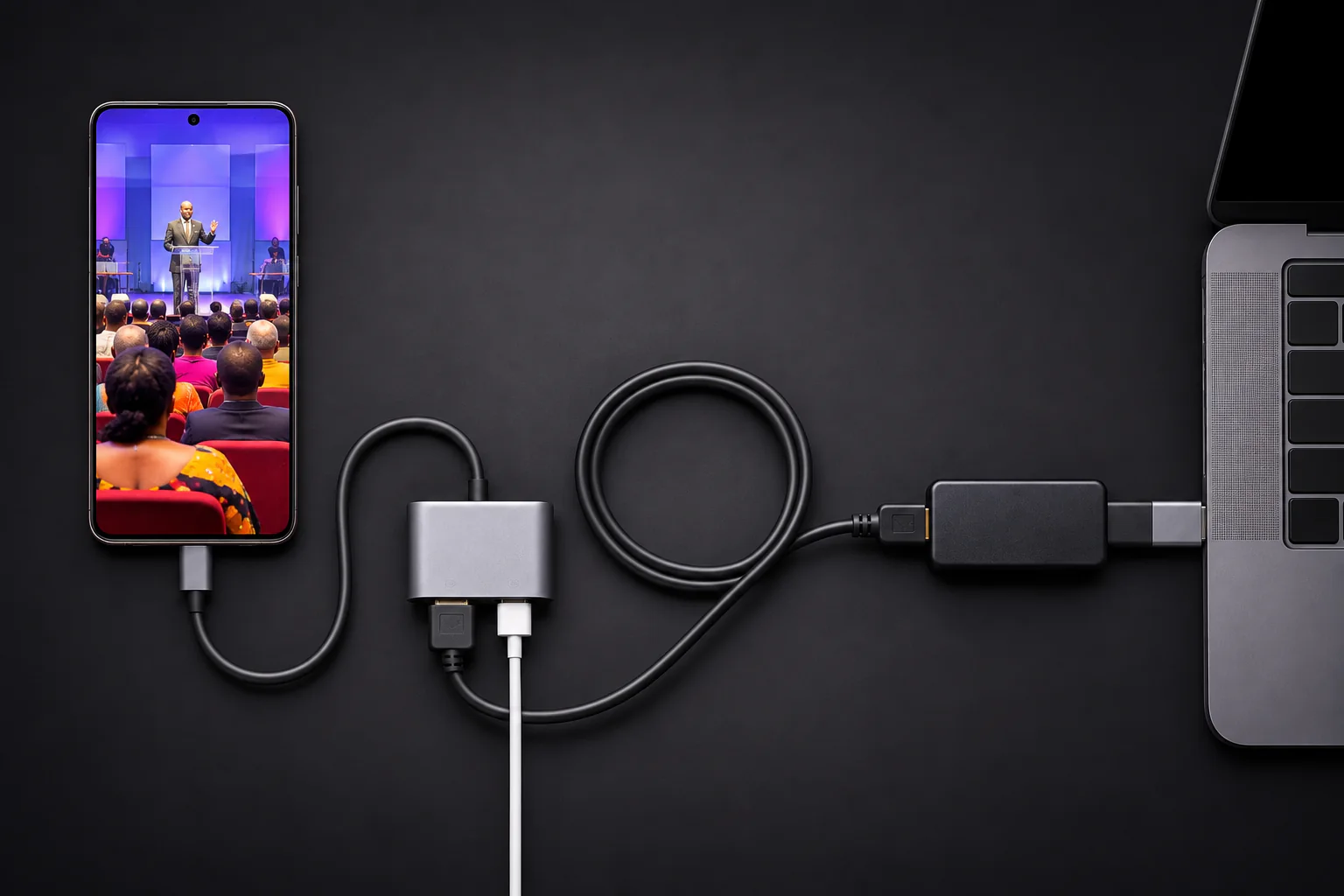
What the phone needs:
- iPhone 15 or later: a USB-C hub with an HDMI port.
- iPhone 14 or earlier: Apple's Lightning Digital AV Adapter.
- Android: a phone that sends video over USB-C, and a USB-C hub with HDMI. Many flagship phones do. Most budget phones do not, so check before you buy the hub.
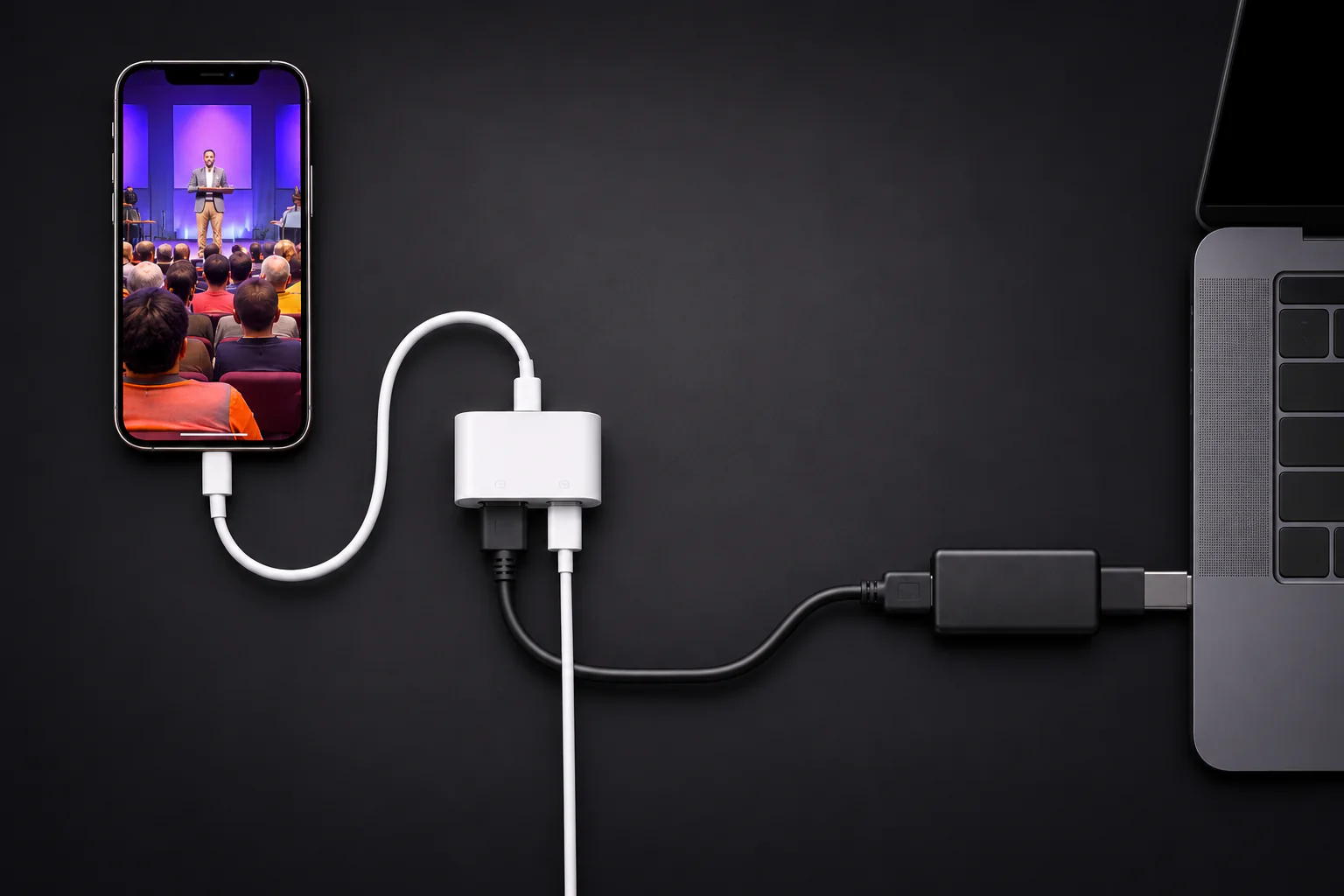
Choose a hub or adapter with a charging port, because it takes the phone's only socket. In RheoCast the capture card is an ordinary camera source. Over HDMI alone, you zoom, focus and switch cameras on the phone itself; to run it from the desk as well, tap Pair over Wi-Fi on the phone.
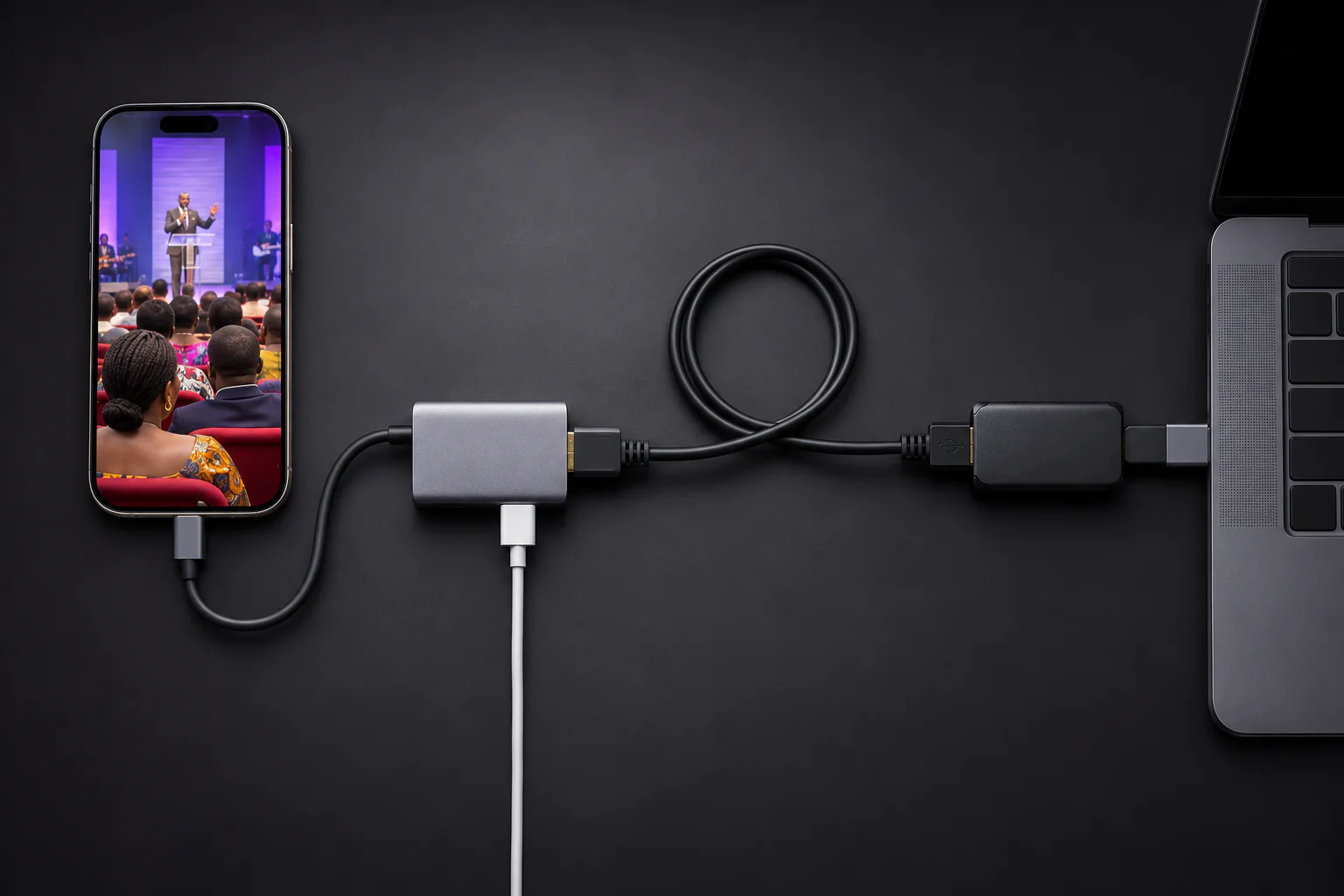
HDMI is also how a phone's picture can travel a long way with no network at all: phone into the hub, hub into a wireless HDMI transmitter, receiver into the capture card. That is how a phone can film from the balcony of a large building.
Which one should you use?
| Connection | Best for | What to watch |
|---|---|---|
| Wi-Fi | Getting started, moving the phone around | A busy or 2.4 GHz network softens the picture |
| USB cable | A fixed camera near the computer | Cable length |
| HDMI and capture card | Long distances, churches with capture cards | Needs the right adapter, and a phone with video out |
Many churches end up with a mix: one phone on a cable beside the pulpit and one on Wi-Fi for a wide shot of the worship team.
Running it from the desk
Once the phone is connected over Wi-Fi or a USB cable, nobody needs to stand beside it. From the computer you can zoom in up to 8×, flip between the front and back cameras, change the resolution, set the exposure and turn on the phone's light for a dark stage.
When the console puts a phone on air, the phone shows a coloured border: red when it is live, green when it is next. If a volunteer is holding the phone, they can see from across the room when they are on.
A checklist for Sunday
- Phone charged and plugged in, on its side, on a tripod.
- Do Not Disturb on, so a call or a message does not interrupt the shot.
- The camera app open before the service starts. Keep it open.
- A test of every angle in the console before people arrive.
- A cable on hand, in case the Wi-Fi struggles when the room fills.
Start with the phones you have
Before you spend money on a camera, try the phone in your pocket. Install RheoCast Camera on the phone, download RheoCast for the computer, and connect them before next Sunday. Both are free, and a second angle is the quickest way to make your stream better to watch.
For the whole streaming setup, cameras to going live, read How to Stream Your Church Service to YouTube and Facebook.
Read next
- How to Stream Your Church Service to YouTube and FacebookA practical guide to streaming your church service: cameras, sound, internet, going live on YouTube and Facebook together, and a checklist.
- Free Church Presentation and Streaming SoftwareWhat a church can do for free: put verses and lyrics on screen, run cameras and scenes, and stream to YouTube and Facebook without a watermark.
- Showing Worship Lyrics on Screen and on the StreamHow to put worship song lyrics on the church screen and the live stream: preparing songs, slides people can read, and following the worship leader.